
Open the styling panel on almost any website, design tool, or photo editor and you will run into the same wall of unfamiliar text: #1A73E8, rgb(26, 115, 232), hsl(217, 89%, 51%). These three values describe the exact same shade of blue, but they look nothing alike, and most people pick whichever one their software happens to show them without understanding what the numbers actually mean. That gap matters more than it seems. If you are building a website, designing a logo, putting together a presentation, or just trying to match a color from a photo, knowing how these formats relate to each other is the difference between guessing and getting it right on the first try. This guide breaks down what hex, RGB, and HSL actually represent, how to convert between them, and how to turn a single color into a palette that holds together.
Why the Same Color Has Three Different Codes
Every color format you encounter on a screen is describing light, not paint, and they all trace back to the same idea: mixing red, green, and blue light at different intensities produces every color a monitor can display. The formats differ only in how they express those intensities.
Hex codes are the most common because they are compact. A hex code like #1A73E8 packs three values into six characters, two each for red, green, and blue, written in base 16 instead of base 10. Each pair ranges from 00 (none of that color) to FF (the maximum, 255). So #1A73E8 means red is 1A (26 in decimal), green is 73 (115), and blue is E8 (232). Hex shows up constantly in CSS, design software, and brand style guides because it is short enough to type and copy without much room for error.
RGB is the same information written in plain decimal numbers: rgb(26, 115, 232). It is more readable than hex if you are not used to hexadecimal, and it is the format most photo editing software uses when you pick a color with sliders, since each slider just controls one of the three 0-255 values directly.
HSL takes a completely different approach. Instead of describing how much red, green, and blue light to mix, it describes the color the way a person might: hue (where it sits on a color wheel, from 0 to 360 degrees), saturation (how vivid or washed out it is, as a percentage), and lightness (how close it is to black or white, also as a percentage). HSL is often the easiest format for adjusting a color deliberately. If a blue feels too dull, raising the saturation value makes it punchier without changing the hue at all. Try doing that with hex or RGB and you would have to recalculate all three numbers from scratch.
Converting Between Hex, RGB, and HSL Without Guessing
The math behind these conversions is not complicated, but it is tedious enough that doing it by hand introduces mistakes. Converting hex to RGB means splitting the six characters into three pairs and converting each pair from base 16 to base 10. Converting RGB to HSL involves finding the minimum and maximum of the three values, then running them through formulas for hue, saturation, and lightness that involve several steps of division and conditional logic depending on which of red, green, or blue is largest. None of this is something you want to redo every time you need to match a color.
The most common real-world situation is starting with one format and needing another. A designer hands you a brand color as a hex code, but the charting library you are using only accepts RGB. Or you picked a color visually using HSL sliders because it was easier to fine tune, but now you need the hex value to paste into a CSS file. Rather than working through the formulas manually, paste the value into the Color Converter and get accurate hex, RGB, and HSL values for the same color side by side, instantly and without rounding errors creeping into your design system.
One thing worth knowing: small rounding differences are normal and usually invisible. Hex values only have 256 possible levels per channel, while HSL percentages can express finer gradations, so converting back and forth a few times can shift a value by one or two units. This almost never matters visually, but if you are working with a strict brand guideline that specifies an exact hex code, always keep that hex code as your source of truth and convert from it, rather than converting a converted value repeatedly.
How to Build a Color Palette That Actually Works Together
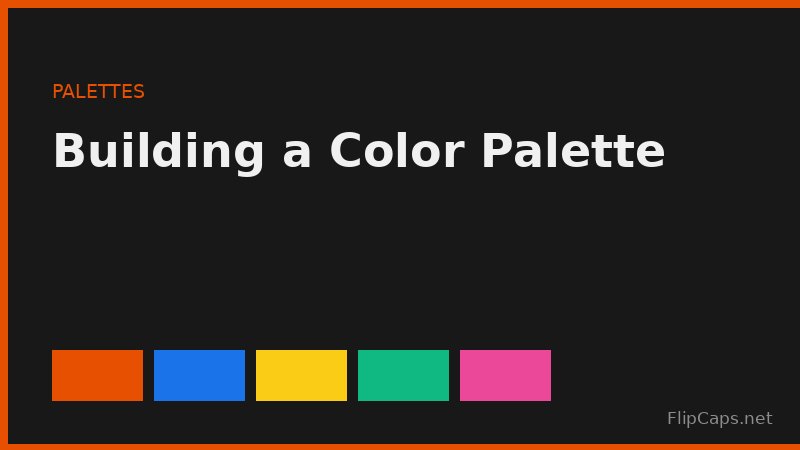
A single color rarely does the work alone. Websites, presentations, and designs need a small set of colors that work together: a primary color, one or two accents, and neutrals for text and backgrounds. The fastest way to understand how palettes are built is to think in terms of the color wheel and a handful of relationships between hues.
Complementary Colors
Complementary colors sit directly opposite each other on the color wheel, 180 degrees apart in HSL hue. Blue and orange, red and green, purple and yellow. These pairs create strong contrast and are useful when you want one color to clearly stand out against another, such as a call to action button against a background. The risk is that two full-strength complementary colors used in equal amounts can feel jarring, so one color is usually dominant and the other is used sparingly as an accent.
Analogous Colors
Analogous colors sit close together on the wheel, typically within 30 to 60 degrees of each other. Think of a sunset palette of red, orange, and yellow, or a calm scheme of blue, teal, and green. Because the hues are similar, analogous palettes feel cohesive and comfortable, which makes them a safe choice for backgrounds, illustrations, and anything where you want variety without visual tension.
Triadic Colors
Triadic palettes use three hues spaced evenly around the wheel, 120 degrees apart. This gives you more variety than an analogous scheme while still feeling balanced, since no single color fights for attention the way a complementary pair can. Triadic schemes work well when a design needs to distinguish between several categories, such as chart colors or tags, without any one category visually dominating.
Rather than calculating these hue relationships by hand, the Color Palette Generator builds a full set of coordinated colors starting from a single base color, so you can start from a brand color you already have and get matching accents and neutrals without doing the color wheel math yourself.
Start with one color you already like and generate a complete, coordinated palette around it in seconds.
Try the Color Palette GeneratorWhen You Actually Want a Random Color
Most of the time, picking a color is a deliberate decision. But there are situations where a random color is exactly what you need, and trying to "design" one defeats the purpose.
Placeholder content is the clearest example. If you are building a layout with ten category cards and have not decided on a final color scheme yet, assigning each card a random background color helps you see how the layout handles variety before you commit to a real palette. Testing is another case: if you are checking how a UI handles user-generated avatar colors, or stress-testing a chart component with dozens of data series, random colors surface edge cases that a hand-picked set of five colors never would, like two adjacent values that happen to be nearly identical or a color that disappears against the background.
Random colors are also a legitimate creative tool. Designers often hit a wall when every color they try feels like a variation of what they already had in mind. Generating a few random colors and reacting to them, even rejecting most of them, can break that loop and surface combinations you would not have arrived at deliberately. The Random Color Generator gives you a quick hex, RGB, and HSL value for a fresh color with one click, which makes it easy to cycle through options until something catches your eye.
The key distinction is intent. Random is a tool for exploration, placeholders, and testing, not for the final colors in a brand or a polished design. Once a random color earns its place, treat it like any other deliberate choice: run it through the palette generator to see what it pairs well with, and lock in the hex value so it stays consistent everywhere it is used.
From Palette to Brand: Turning Colors Into a Favicon
Once you have a palette you are happy with, the next step is usually applying it somewhere small and visible: a favicon, the little icon that appears in browser tabs, bookmarks, and search results. A favicon is one of the smallest pieces of brand design you will ever create, but it is also one of the most frequently seen, since it shows up every time someone has your site open in a tab.
Because a favicon is displayed at sizes as small as 16 by 16 pixels, the colors you choose need to hold up at a tiny scale. A palette that looks great as a full webpage background can turn into an indistinct gray blob once shrunk down, especially if it relies on subtle gradients or closely related hues. The colors that survive shrinking best are the ones with a clear difference in lightness between the foreground shape and the background, which is exactly the kind of relationship a good palette already defines if you built it with contrast in mind from the start.
When you are ready to turn your primary and accent colors into an actual icon file, the Favicon Generator takes your source image or design and produces the full set of favicon sizes a modern site needs, so the palette you worked out earlier in this process ends up represented correctly in the one place almost every visitor will see it.
Turn your finished palette into a complete set of favicon sizes for browser tabs and bookmarks.
Try the Favicon GeneratorThe Contrast Mistake Almost Every Palette Makes

The most common failure in a color palette has nothing to do with whether the colors are attractive together. It is contrast: whether text is actually readable against its background. A palette can look beautiful in a mockup, with a soft gray text color on a slightly darker gray background, and then fail completely for anyone reading it on a low-brightness screen, in bright sunlight, or with any degree of low vision.
Contrast is measured as a ratio between the lightness of two colors, and accessibility guidelines set minimum ratios for body text and larger headings. The practical takeaway, without getting into the formulas, is this: if you are choosing text and background colors from the same palette, check the HSL lightness values, not just how the colors look on your own monitor at full brightness. A gap of only 10 to 15 percent in lightness between text and background is a common source of complaints, even when the colors seem fine to the person who picked them.
The fix is usually simple once you know to look for it: keep your most saturated, vivid colors for accents, buttons, and small details, and rely on a much lighter or much darker neutral for any large block of text or background. This is also why most palettes include at least one near-white and one near-black or very dark neutral, even if neither one feels like an exciting design choice on its own. They are the colors doing the most actual work.
Putting It Together
Color codes look intimidating because there are three different ways to write the same information, but the underlying idea is simple: every color is just a combination of red, green, and blue light, described either directly (RGB), compactly (hex), or in terms of hue, saturation, and lightness (HSL). Once you can move between these formats without friction, the harder and more interesting work becomes building a palette: picking relationships between colors that create the right amount of contrast and harmony, deciding when a random color is actually useful, and making sure the final result holds up at every size, from a full homepage background down to a 16-pixel favicon. None of this requires special design training. It requires knowing what the numbers mean, and having the right tools on hand to convert, generate, and apply them without redoing the math every time.
← Back to all articles